How to Add a Bot to Discord
Add a Discord bot on desktop or mobile with an official invite, review permissions safely, and use the Discordium bot directory when you need a music, moderation or utility app.
Guides · Guides & Tutorials
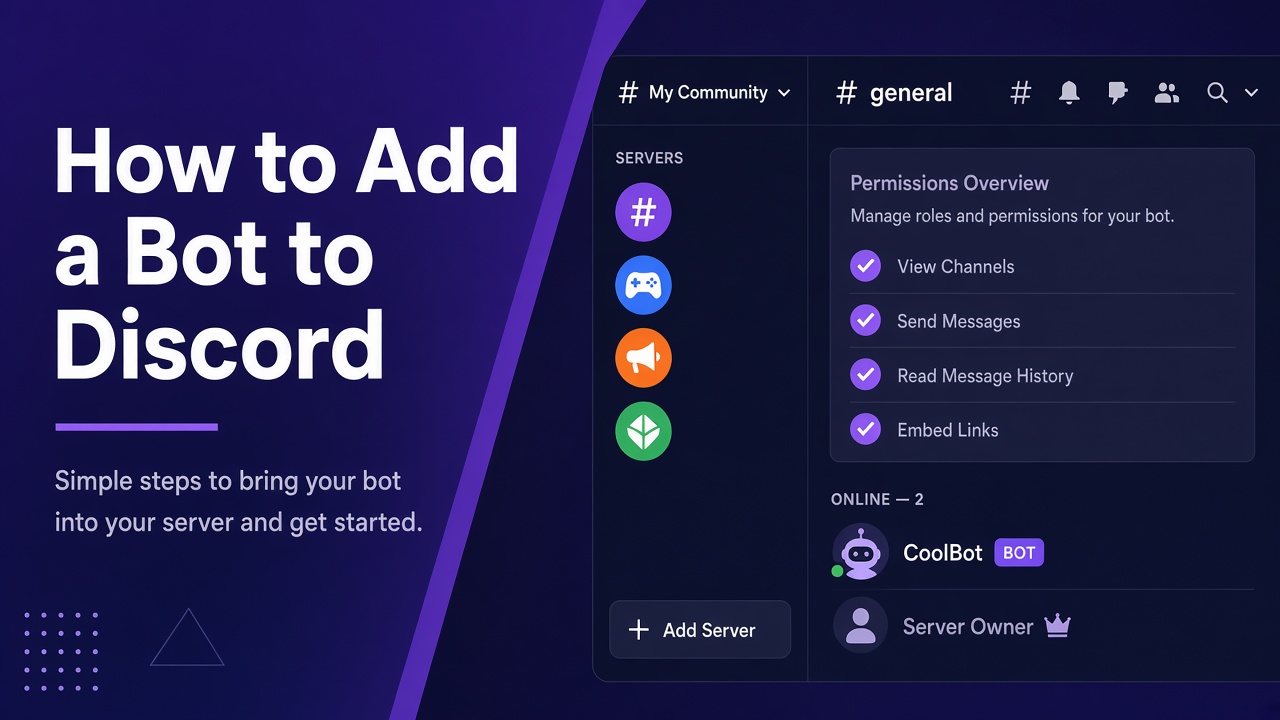
How to Add a Bot to Discord
Adding a bot — Discord now often calls these apps — takes a few minutes if you have the right permission and you read what the bot is asking for.
This guide covers how to add a bot on desktop and mobile, how Invite works on the Discordium bot directory, and what to do when slash commands don't appear.
What you need
To add an app to a server, you must be the server owner or have the Manage Server permission. Discord only offers servers where that's true.
Some apps can also be added to your Discord account. A user-installed app travels with you into servers and DMs, but it does not join as a member and cannot delete messages or manage roles. For a music or moderation bot everyone can use, add it to the server.
Use an official invite, or a directory listing that provides one. Don't use a "bot" file, a random download, or a page that asks for your password or token. If a link looks wrong, see Links & Downloads and the Safety & Privacy Center.
1. Add a bot on desktop or in a browser
From an invite link
- Open the official invite in your browser. It usually goes to
discord.com/oauth2/authorizeand includes the app's client ID. Sign in if Discord asks you to. - If the app can be installed to a server and to a user account, the prompt may ask you to choose. Official developer docs label these options Add to server and Add to my apps. Choose Add to server when you want the bot in the member list.
- Pick the server. Only servers you own or can manage appear here.
- Review the permissions, then confirm with Authorize.
- The app should appear in the member list and under Server Settings > Integrations > Bots and Apps.
From Discord's App Directory
The App Directory is available on the desktop and browser clients, and on Discord's website. Open the server, click the server name, then go to Server Settings > App Directory. Open an app, read its overview, and press Add App. Review the permissions and select Authorize.
2. Add a bot on mobile
On a phone, use the official invite in your mobile browser — not a download or a site that asks for your password. Official help describes the App Directory on desktop, browser and Discord's website, not in the mobile app. Sign in if asked, choose the server option if you're offered a choice, review permissions, and confirm. You can also add some apps from a chat or member list via Add App on the app's profile.
3. Add a bot from the Discordium directory
The bot directory puts an Invite button on each card. On a listing page, the same action is labelled Invite Bot. Both open the stored invite URL in a new tab.
That URL comes from the bot owner or from the bot's Discord install settings. It is often a Discord authorize link; a few listings send you to the developer's site first. If a listing has no invite, the page shows No invite link.
Check the permission list on Discord's page, not only the button on Discordium. Some invite links request Administrator. You don't have to accept that. Look for a narrower official link, or tighten the bot's role after install.
If you run a bot, you can list it at Add Your Bot. Discordium asks for the client ID and a one-time ownership check; it never asks for your bot token. The full flow is in How to List and Promote Your Server or Bot on Discordium.
Discordium's helper bot is Dizi. Its invite uses seven permissions and no Administrator. After it joins, commands such as /addserver, /bump, /vote and /help are available. A submitted server stays hidden until Dizi joins it.
For music bots, see Best Discord Music Bots in 2026 and the music tag.
4. Set up permissions and roles safely
Start with the least access the bot actually needs. For a fuller walkthrough, see Discord Roles and Permissions.
- Avoid Administrator unless you fully trust the developer and have a clear reason. It grants every permission and bypasses channel overwrites.
- A music bot typically needs to see and join voice, speak, and send messages — not ban members or manage the server.
- A moderation bot may need Kick, Ban, Timeout or Manage Messages, still not Administrator.
- After install, open Server Settings > Roles. A bot can only act on members whose highest role sits below the bot's highest role. Drag the bot's role above the roles it must manage, and keep admin and staff roles above it.
- Channel overwrites can still block a bot. Members also need permission to use application commands in that channel. You can limit individual commands under Server Settings > Integrations.
If the server has 2FA Requirement For Moderation turned on, Discord requires 2FA on the application owner's account before the bot can use elevated permissions (Administrator, Kick, Ban and other starred permissions in Discord's docs). If those actions fail after a clean install, the gap is often on the developer's side. Staff accounts should have 2FA as well; see Enable 2FA and Preventing Hacks, Scams & Raids.
Troubleshooting
The bot doesn't show up
Confirm you authorized it for this server, not only for your account. A user-installed app will not appear in the member list or under Integrations. If you added it to the server, search the member list; offline bots sit with offline members.
The server isn't in the dropdown
You need to be the owner or have Manage Server, signed in with that account. If you're adding the app only to your account, there won't be a server list.
Slash commands are missing
Type / in a channel the bot can see. If its commands don't appear, refresh the client, confirm you and the bot can use application commands there, and check Server Settings > Integrations. Server-specific commands appear immediately; global ones can take a while. Inviting the bot again from the official URL (you usually don't need to kick it first) can grant a missing commands scope.
The bot is offline
It's in the server, but its service isn't connected to Discord. Re-inviting rarely fixes this. Check the developer's status page or support server. If you maintain a public bot, see Discord Bot Support Documentation.
Setup checklist
- ☐ Official invite or a directory Invite button — not a file or password form
- ☐ Added to the server (not only to your account) if everyone should use it
- ☐ Permissions reviewed on Discord's authorize screen
- ☐ Bot role placed correctly; Administrator avoided unless you have a clear reason
- ☐ Slash commands appear in a channel the bot can see
Frequently Asked Questions
Do I need Manage Server to add a bot?
Yes, to add it to a server. The owner can always do this. Adding an app only to your account does not require Manage Server, but that install is just for you and can't moderate the server.
What's the difference between a server install and a user install?
A server install is visible to everyone in that server and can request bot permissions. A user install follows you into servers and DMs, can't take server-management actions, and may be usable by others when you invoke it.
Can I change permissions after I authorize the bot?
Yes. Adjust the bot's role under Server Settings > Roles, and use channel overwrites if it should only work in some channels. To remove it from a server, kick it from the member list if you have Manage Server or are the owner. To remove it from your account, go to User Settings > Authorized Apps and deauthorize it.
Is it safe to add a bot from a directory?
A listing is a starting point, not a guarantee. Use official invites, read the permissions screen, and prefer bots with a support server and documentation. Discordium never asks for a bot token when you list your own bot. Never give your token or password to anyone. See the Safety & Privacy Center if a link looks wrong.
Next step
Browse the bot directory for a music, moderation or utility bot, or list your own. To keep a server listing up to date, invite Dizi. More answers are in the FAQ.
Editorial note: Install labels follow official Discord documentation as of November 2026. Button names on the authorize screen can vary by client and were not re-checked in a signed-in session on the day of writing.