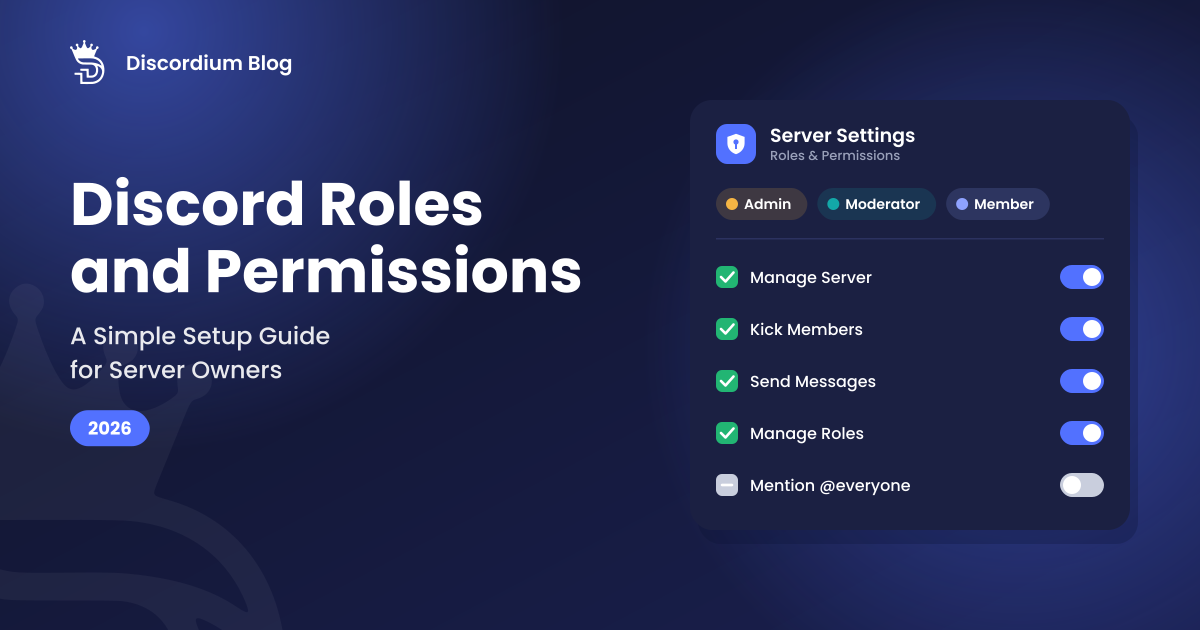
Discord Roles and Permissions: A Simple Setup Guide for Server Owners
Roles decide who can see what, who can say what, and who can moderate whom. Get them right and your server feels organized and safe. Get them wrong and one compromised account can delete channels or ban half your members.
Here is how Discord's role system works, a starter structure you can copy, and the mistakes worth avoiding.
How Discord Roles Work
Every member gets permissions from the roles they hold. A member with several roles gets the permissions of all of them. Their name color comes from their highest role in the list.
@everyone is your baseline
Every member has the @everyone role, and Discord uses it as the template for new roles. Whatever @everyone can do, every member can do. Set it up first and keep it limited.
The role hierarchy
Roles are ranked top to bottom in Server Settings > Roles, and you change the order by dragging them. That order matters:
Members can only manage users whose highest role sits below their own highest role.
Moderators can't ban, kick or change the nickname of someone with an equal or higher role, even if they have that permission.
Someone with Manage Roles can only edit roles below their own and can only grant permissions they already have.
New roles are added at the bottom, just above @everyone.
In practice: put your most trusted roles at the top and your bot or cosmetic roles where they need to be, not wherever they happened to land.
A Starter Role Structure
Most community servers do well with five to seven functional roles. Here's a layout you can adjust:
Role | Purpose | Suggested permissions |
Owner / Admin | Server leadership | Broad server management. Use the Administrator permission sparingly |
Moderator | Day-to-day moderation | Manage Messages, Timeout Members, Kick Members |
Helper / Trial Mod | Newer staff | Manage Messages only |
Bots | Moderation and utility bots | Only what each bot actually needs |
Verified / Member | Members who passed onboarding | Send messages, join voice |
Cosmetic roles | Colors, games, regions, pings | No extra permissions |
@everyone | Everyone, including brand-new joins | Read rules and welcome channels |
Keep cosmetic and functional roles separate
Roles for colors, interests or notification pings should have no permissions at all. Then you can hand them out freely (for example with self-assign roles during onboarding) without accidentally giving anyone power.
Be Careful With Administrator
Administrator grants every permission and bypasses all channel restrictions. Discord itself recommends giving it out with extreme caution.
A few rules of thumb:
Keep Administrator to yourself and maybe one co-owner you trust completely.
Give moderators the specific permissions they need instead.
Don't give bots Administrator just because the invite link asks for it. Grant only the permissions the bot uses.
If a staff account gets compromised, limited permissions keep the damage limited too.
Channel Permissions and Private Channels
Server-wide roles set the defaults. Channel permissions let you override them for a single channel or a whole category.
Making a staff-only or member-only channel
Right-click the channel and choose Edit Channel > Permissions.
Turn on Private Channel. Discord removes View Channel from @everyone.
Click Add members or roles and add the roles that should have access, such as Moderator.
Work with categories, not single channels
Right-click a category and choose Edit Category > Permissions to set rules for every channel inside it. Channels that are synced update automatically whenever you change the category.
If you edit a single channel's permissions, it becomes not synced and stops following the category. To bring it back in line, open Edit Channel > Permissions and press Sync Now.
Need another channel with the same rules? Right-click an existing one and pick Duplicate Channel, which copies its permission settings too.
A common pattern: verification gate
@everyone can only see #rules and #welcome.
The Member role, given after onboarding or verification, unlocks the rest of the server.
This slows down raiders and spam accounts and gives newcomers a clear first step. It works well alongside Discord's built-in safety tools and AutoMod.
Common Mistakes to Avoid
Giving @everyone too much. Permissions like mentioning @everyone or creating invites should usually stay with trusted roles.
Bot roles at the wrong height. A bot can only kick, ban or rename members whose highest role is below the bot's highest role, and it can only assign roles below its own. Administrator doesn't change this. Place the bot's role above the roles it needs to manage, and below your staff.
Too many staff roles. Ten nearly identical staff roles make mistakes more likely. Fewer, clearly defined roles are easier to audit.
Never reviewing your roles. Once a month, check who has staff roles and remove anyone who's no longer active.
Using permissions for decoration. If a role exists only for a color, it shouldn't have any permissions.
Quick Setup Checklist
[ ] @everyone limited to the basics
[ ] Clear order: Admin > Moderator > Helper > Bots > Member > Cosmetic
[ ] Administrator held by as few people as possible
[ ] Bots given only the permissions they need
[ ] Private staff channels set up
[ ] Permissions set at category level and channels synced
[ ] Monthly review of staff roles on your calendar
Ready for New Members?
A clean role setup means newcomers know where to go and your team can moderate with confidence. That's the right time to bring in more people.
List your server on Discordium so members who share your interests can find it. Pair your listing with a clear server description and a welcoming onboarding flow, and the people who join are more likely to stay.